I’m starting to fill out a timeline view, pulling events from the sidebar. Is there anyway to sort/filter, in the sidebar, events that don’t have dates yet, so I don’t accidentally double-up or misplace an event that’s already been placed?
Look at the spreadsheet view and click the label to arrange in alphabetical order, then drag the start and end date columns next to the name and it is easy to see which scenes have dates and which do not. You could then change the color of the scene event to something distinct to make it easy to see in other views.

Hi @brodiekins,
Thanks for reaching out!
There isn’t currently an option to filter the sidebar to show only Events without dates, but there is a useful way to identify them while working directly from the sidebar.
Using Find in View
-
In the left-hand sidebar, click the slider icon at the top.
-
Select Quick Access Buttons → Find in View.
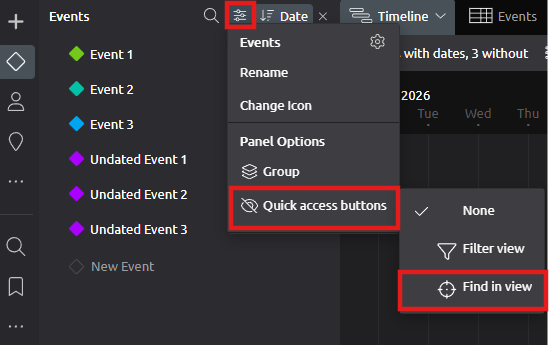
This adds a target icon next to dated Events. Clicking the icon will locate the Event on the Timeline.
Events without dates will display a dash instead. Hovering over the dash changes it to Add to View.
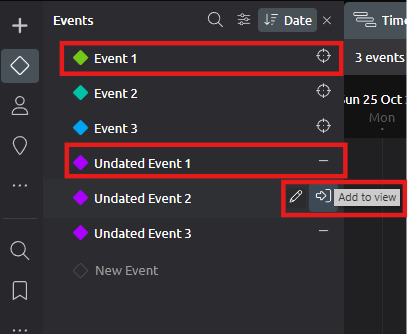
If you’re working with multiple Item Types, repeat these steps in the sidebar for each Item Type you want to add to the Timeline.
Checking Item Type visibility
To check that all relevant Item Types are selected:
-
In the Timeline View header, click Content.
-
Ensure all relevant Item Types are ticked under Cards.
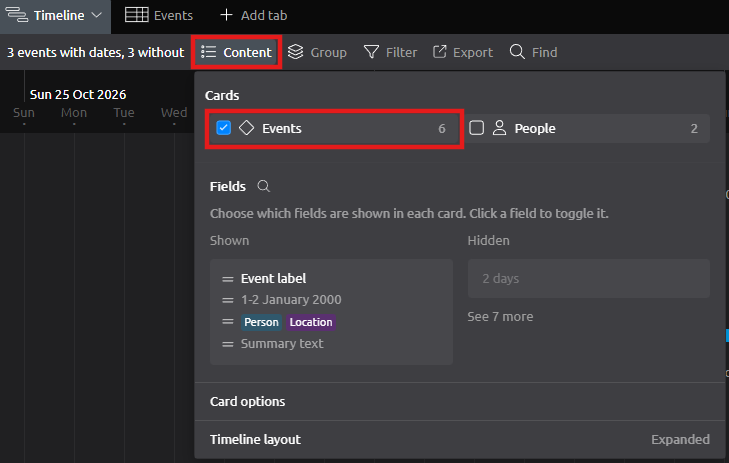
This ensures the Find in View feature can correctly identify items on the Timeline. If an Item Type isn’t selected, its items won’t be displayed or found in that View, even if they have dates.
Sorting Events by Date
You can also sort the sidebar by Date to display Events without dates at the top or bottom of the list:
-
Click Date at the top of the sidebar.
-
Under Sort rows by, select Date, choose Earliest First, and ensure Flexible Ordering is ticked.
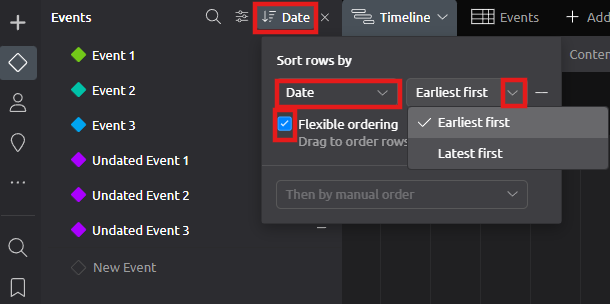
Undated Events will appear at the bottom of the list. Select Latest First if you’d prefer them at the top.
Thanks also to @Goaliedad for suggesting the Spreadsheet View!
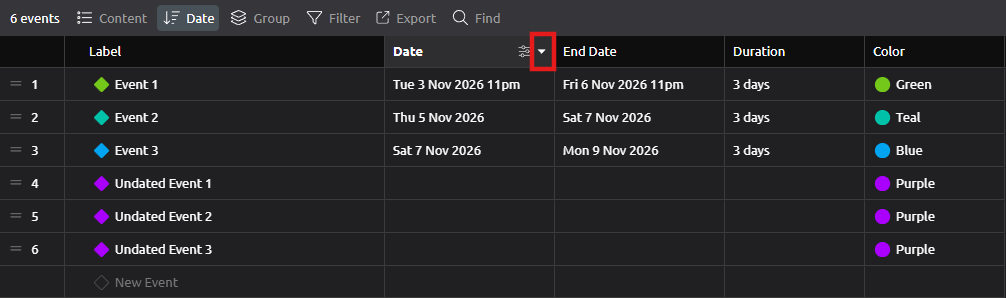
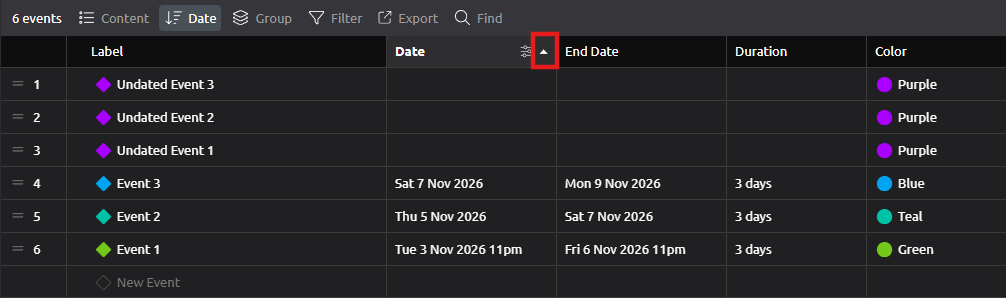
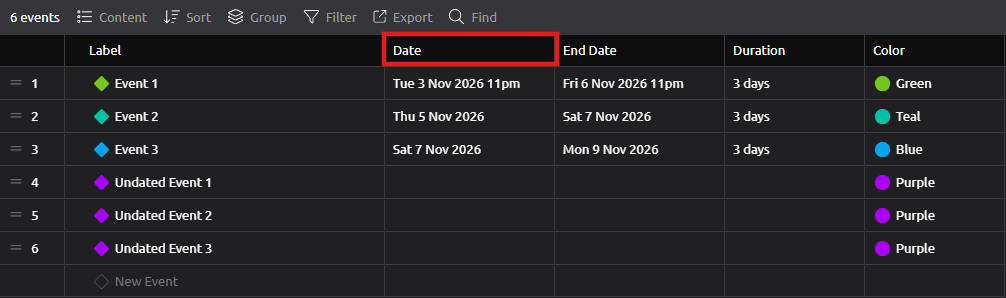
The Spreadsheet View is another useful option, as it displays both dated and undated Events together in one place. You can sort them by clicking the Date column header to cycle through the following options:
-
Down arrow: Undated Events appear at the bottom of the list.
-
Up arrow: Undated Events appear at the top of the list.
-
No arrow: Events follow the sorting order configured in the sidebar.
Checking Item Type visibility
To check that all relevant Item Types are selected:
-
In the Spreadsheet View header, click Content.
-
Ensure all relevant Item Types are ticked under Rows.
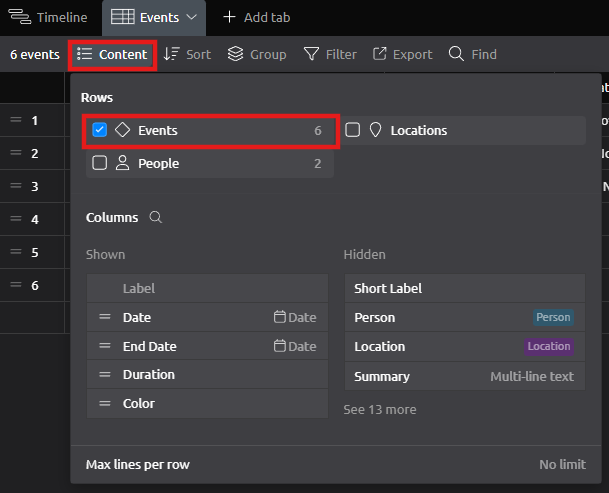
This ensures the Spreadsheet View includes the relevant items, so you don’t accidentally overlook undated Events from an Item Type that isn’t displayed.
If you have any questions or need a hand with any of these steps, please feel free to reach out. We’re happy to help!
Kind regards,
Riaan
Aeon Timeline Support